



Calendar & Deadlines 2 min read Updated: 2026-11-14
Two-Way Google Calendar Synchronization
Each attorney and team member can connect their individual Legalistik schedule with Google Calendar for real-time, two-way synchronization across desktop and mobile devices.
Enabling Two-Way Sync
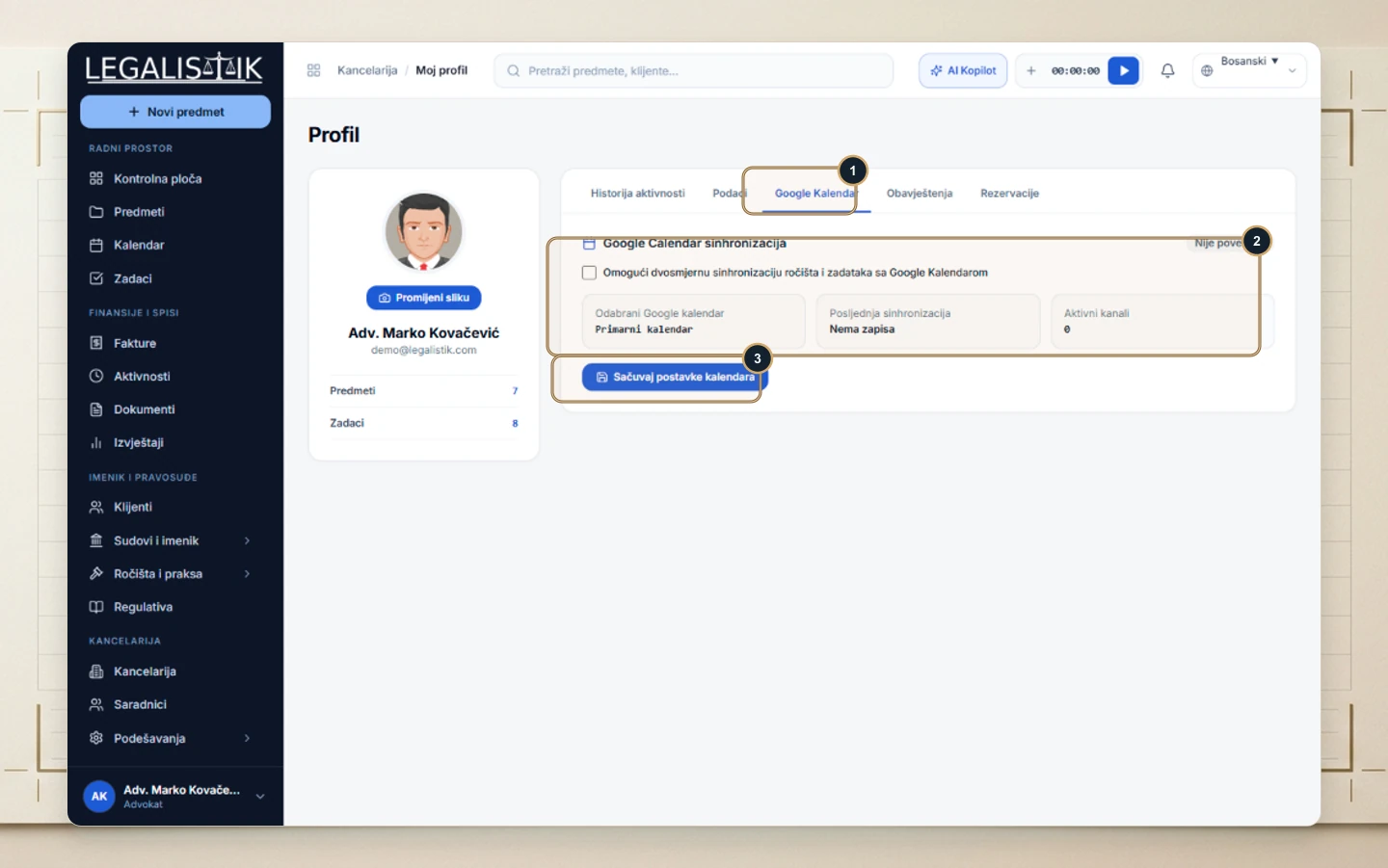
- Click your profile bar at the bottom-left → My Profile, then (1) click Google Calendar.
- (2) Check Enable two-way sync of hearings and tasks with Google Calendar and inspect the target calendar card.
- (3) Click Save Calendar Settings and authorize access in the Google prompt.
How Two-Way Sync & Disconnecting Work
Once you authorize your Google account, hearings and deadlines created in Legalistik sync automatically to Google Calendar across your desktop and phone, and schedule adjustments stay aligned both ways. If you ever want to stop syncing, return to My Profile → Google Calendar, toggle sync off, and save your settings.
